SQLite terminal explorer · Rust + Ratatui
sqlens
A closer look at your database, right in the terminal. Browse tables and views, filter rows, and inspect JSON with a keyboard-driven, read-only interface.
cargo install sqlens --locked
sqlens path/to/database.sqlite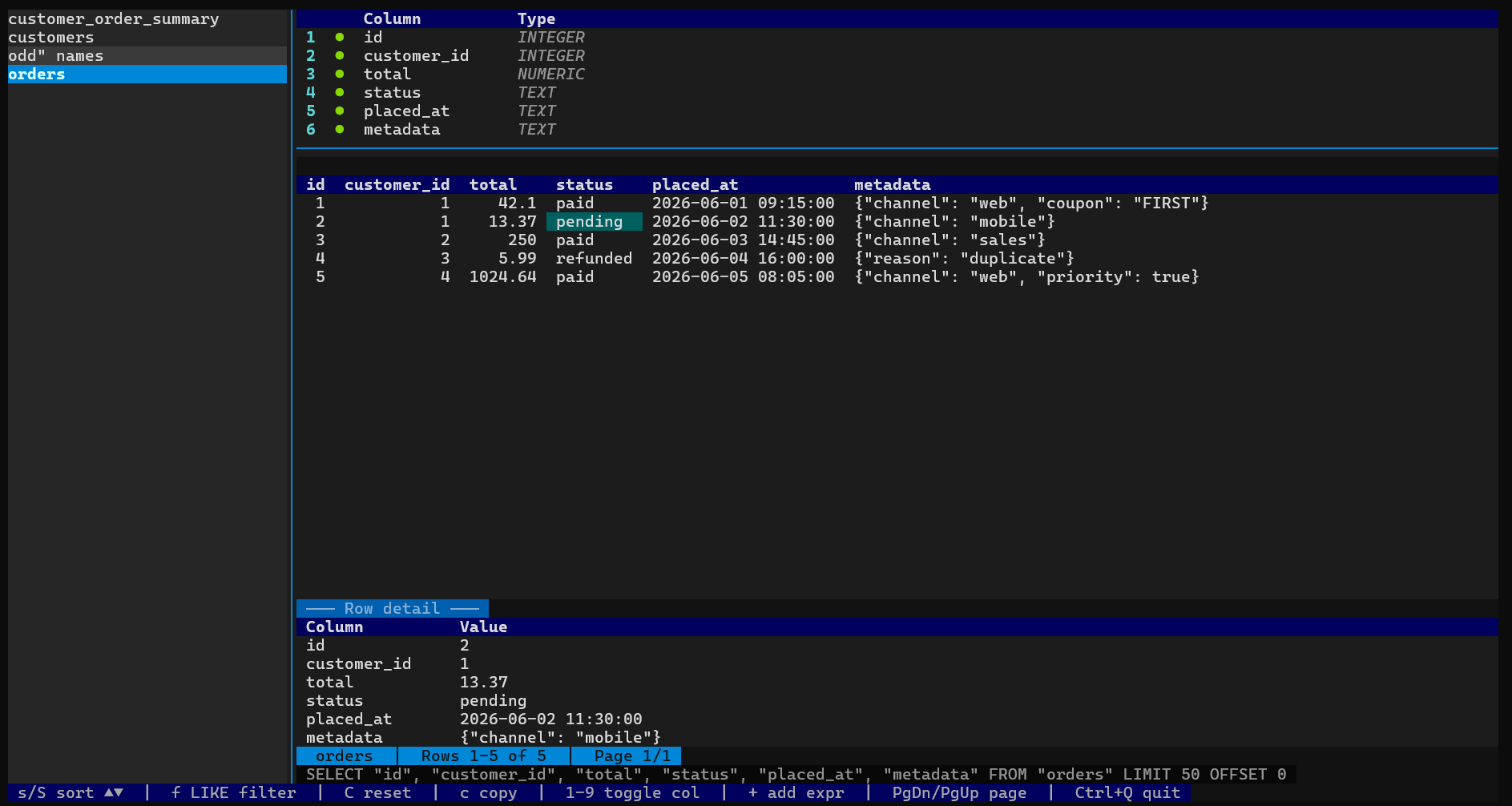
Install and open a database
Install from crates.io with Rust 1.88+ and a C compiler. SQLite is bundled into the executable; Python and a system SQLite installation are not needed.
cargo install sqlens --locked
sqlens path/to/database.sqlite
Use the path to an existing database file. If your shell cannot find sqlens,
add Cargo’s installation bin directory to your PATH, following the message printed by cargo install.
Install from a checkout
cargo install --path . --lockedRun from the checkout
cargo run --locked --release -- path/to/database.sqlite--locked uses the dependency versions in Cargo.lock without updating it.
--release builds an optimized executable. The final -- separates Cargo’s options from the database path.
The binary is also available at target/release/sqlens after cargo build --locked --release.
Find your way around
- Choose a table or view in the left pane with ↑ and ↓.
- Press Enter to focus the grid. Use the arrows to select a cell.
- Press f to filter its column, or s to sort it.
- Press Enter again for full cell detail. Esc takes you back.
The right pane shows the schema, a page sized to fit the data grid, selected row detail, and the generated SQL. Resizing the terminal adjusts the page size while keeping the selected result row on screen. You can also click tables, cells, and column headers, or navigate with the mouse wheel.
Queries run in the background. You can select another table while one is loading, or press Esc from the grid to cancel. Use a terminal at least 40 columns wide and 12 rows high; larger windows show more schema and row detail.
Keyboard reference
| Key | Action |
|---|---|
| Tab / Shift+Tab | Cycle focus forward / backward between the table list and grid. |
| Arrows or h j k l | Navigate left, down, up, and right. Left from the first visible column returns to the table list; Right from the list focuses the grid. |
| Enter | Focus the grid or open full cell detail. |
| s / S | Sort ascending / descending. Repeat the same key to clear that sort. |
| f | Edit the selected column’s LIKE filter. |
| C | Clear all filters and sorting. |
| 1–9, 0 | Toggle visibility of base columns 1–10. |
| v | Open the selector for all base columns. Use arrows and Space to toggle visibility. |
| + | Add a SQL SELECT expression as a column. |
| Delete | Remove the selected expression column, including its filter and sort. |
| y | Copy the raw selected value through the terminal clipboard. |
| Y | Copy the selected row as formatted JSON, including visible columns and expressions. |
| n / p or PgDn / PgUp | Next / previous page, sized to fit the grid height. |
| Home / End or g / G | First / last row on the current page, or first / last table. Also works in the column selector. A single g is enough. |
| r | Reload the current table’s data. |
| Esc / Backspace | Return from cell detail or the grid. From a loading grid, cancel the query. |
| Ctrl+Q / Ctrl+C | Quit from any screen, including an input or dialog. |
Column indicators: ● visible, ○ hidden,
⊘ filtered, and ▲ / ▼ sorted. At least one base column stays visible.
Filter rows and add expressions
Filter a column
Select a cell and press f. Typing London applies
column LIKE '%London%'. Filters on multiple columns are combined with AND.
Submit an empty input to clear that column’s filter. Spaces are preserved, and
% and _ keep their SQLite wildcard meaning. Hiding a column keeps its filter active.
Filter values are bound parameters. The SQL pane shows the generated query and its parameters.
Add a calculated column
Press + and enter one expression, optionally with an explicit AS alias. For example:
UPPER(name) AS upper_name
json_extract(data, '$.id') AS json_id
CAST(price AS REAL) * quantity AS total
You can sort and filter the result like any other column. To remove it, select that expression’s column in the grid and press Delete.
Duplicate column labels are rejected. Aggregates such as COUNT(*)
follow SQLite’s semantics and may collapse the result into one row.
In either input, Enter submits and Esc cancels. Unicode typing, paste, arrow-key editing, Home, End, and Ctrl+U to clear are supported. Vim navigation letters remain ordinary text in these inputs.
Inspect the full value
Press Enter on a cell to open its detail view. JSON text is automatically formatted and highlighted. Plain text is displayed literally; BLOBs are shown as hexadecimal SQL literals.
Use the arrow keys or hjkl to scroll, g / G to jump to the top/bottom, PgUp / PgDn to scroll vertically, and Ctrl + an arrow key to move to an adjacent cell on the current page. Press y to copy the raw value, or Esc to return.
Y copies the row as a JSON object from either the grid or cell detail. Hidden columns are omitted. Numbers and NULL retain their JSON types; text stays a string. BLOBs are represented as hexadecimal SQL-literal strings, and non-finite numbers as strings.
Clipboard support
Copying uses OSC 52, the terminal clipboard protocol. It can work over SSH as long as your terminal
permits clipboard writes. SQLens confirms that it sent the request; the protocol does not confirm
whether the clipboard changed. NULL values are copied as NULL.
Large or changing databases
Exact row counts and deep pages can still take time. SQLens caches counts across paging, sorting, and visibility changes, and invalidates them when the query source, filters, or database data version changes. Navigation and quitting stay available while the query runs.
Without an explicit sort, rows follow SQLite’s query plan. Duplicate sort values or external writes can change page boundaries. Press r to reload rows; reopen SQLens to refresh the table list.
Read-only access
SQLens opens the database with SQLite’s read-only flag and enables query_only.
Filters and expressions change what you see; they do not edit the stored data.